Visit Us On:






Scanning barcodes with your phone or computer has never been easier. Our free barcode scanner tool lets you scan product codes instantly using your device camera—no dedicated hardware needed.
What is the Barcode Scanner?
The barcode scanner is a free web-based tool that reads retail product barcodes using your device's camera. It supports all major barcode formats including UPC-A, UPC-E, EAN-13, EAN-8, Code 128, Code 39, ITF, and QR codes.
Unlike traditional barcode scanners that require expensive hardware, this tool works entirely in your browser. All processing happens locally on your device, which means your scanned codes never leave your computer or phone—perfect for privacy-sensitive inventory management or personal cataloging.
Getting Started
To start using the barcode scanner, simply navigate to the barcode reader tool page. No installation, registration, or downloads required.
How to Scan a Barcode
Scanning a barcode is straightforward:
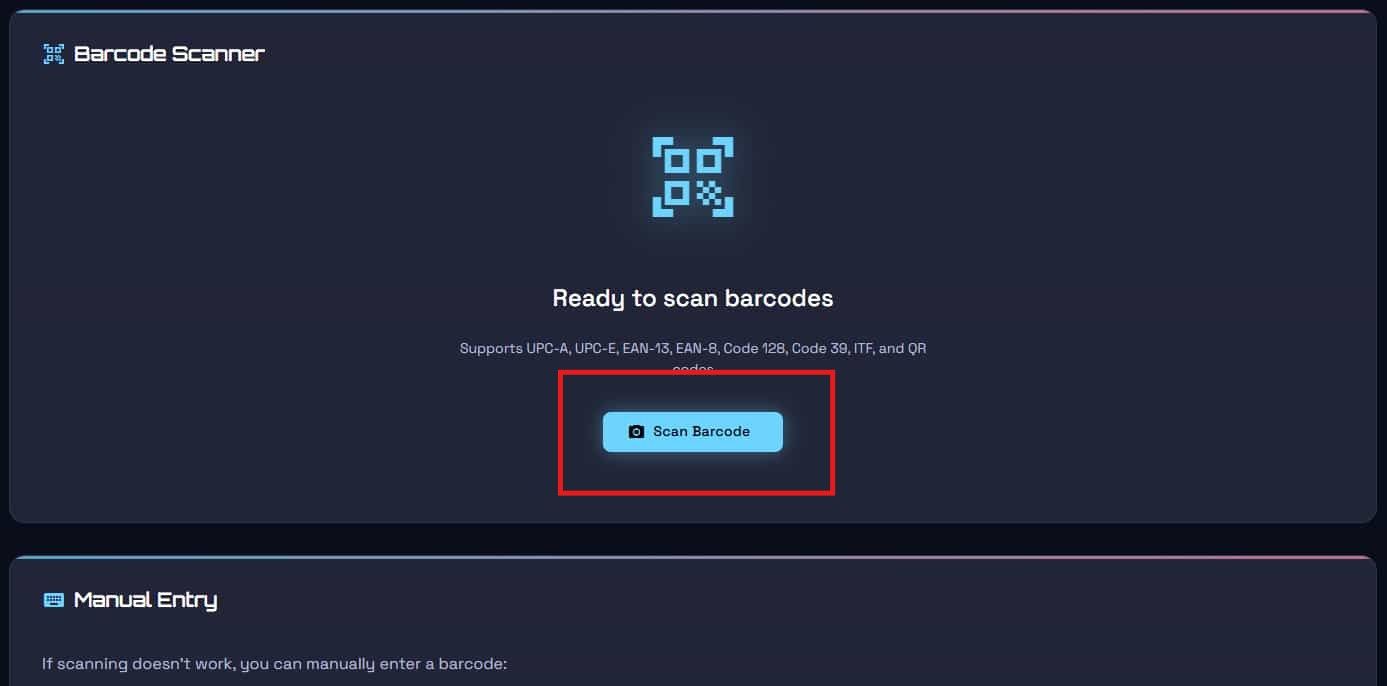
Step 1: Click the "Scan Barcode" button
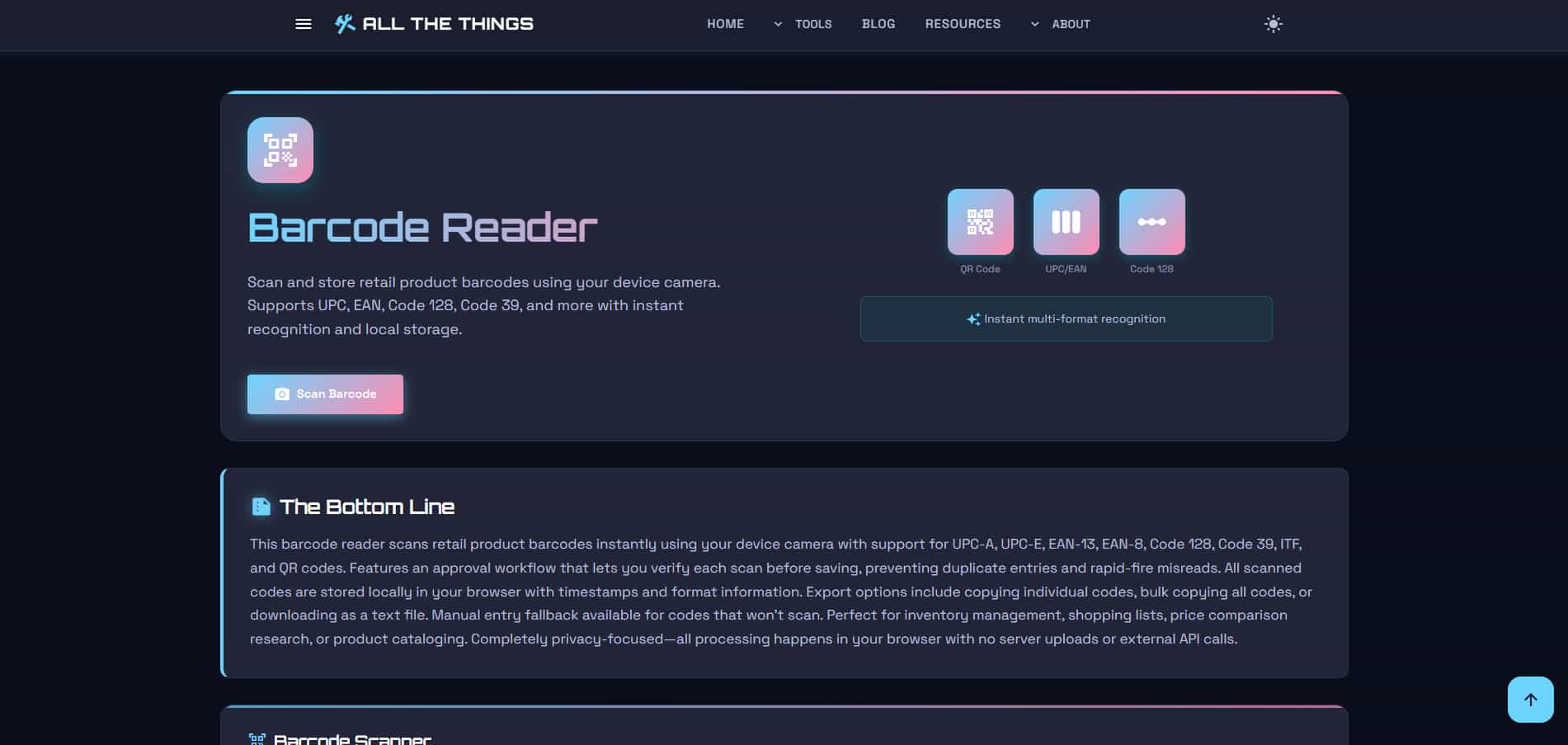
On the main page, you'll see a large blue button labeled "Scan Barcode" with a camera icon. Click this button to activate your device camera.
Step 2: Allow camera permissions
Your browser will ask for permission to access your camera. Click "Allow" to proceed. This is required for the tool to capture barcode images.
Step 3: Position the barcode
When your camera activates, point it at the barcode you want to scan. For best results:
• Hold your device steady and parallel to the barcode
• Ensure good lighting—avoid shadows or glare
• Get close enough that the barcode fills most of the frame
• Make sure the barcode is in focus
Step 4: Capture the photo
On mobile devices, tap the camera shutter button to capture. On desktop, click to take the photo. The tool will immediately analyze the image for barcodes.
Step 5: Review and approve
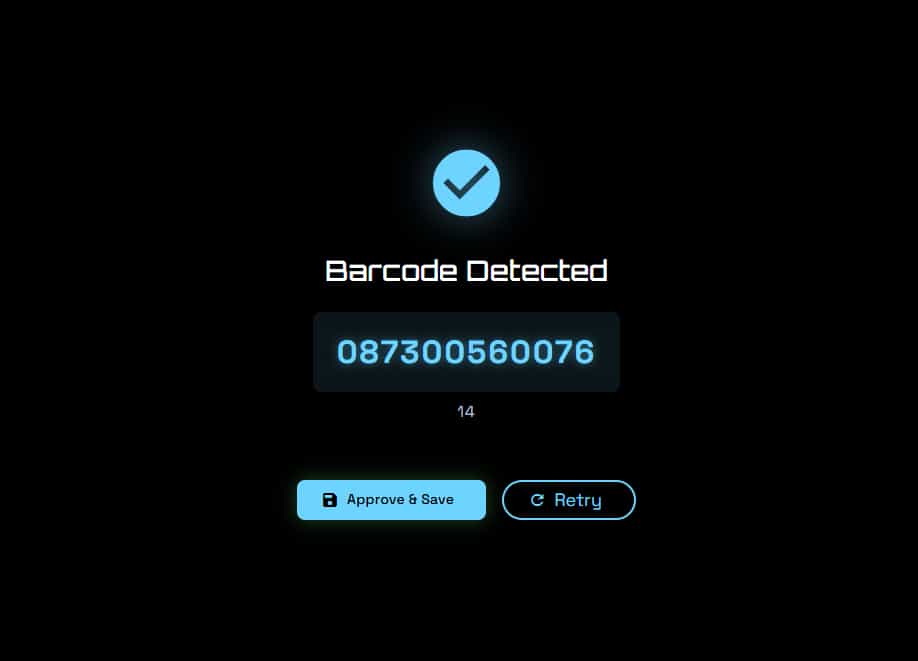
Once a barcode is detected, you'll see a result screen showing the scanned code and its format (e.g., "UPC-A" or "EAN-13"). This approval workflow prevents accidental misreads. You have two options:
• Click "Approve & Save" to add the barcode to your collection
• Click "Retry" if the code is incorrect or you want to scan again
Stay in the Loop
Get notified when we add new tools and features
Thank You!
You're all set. We'll keep you updated with the latest tools and features.
Manual Entry Option
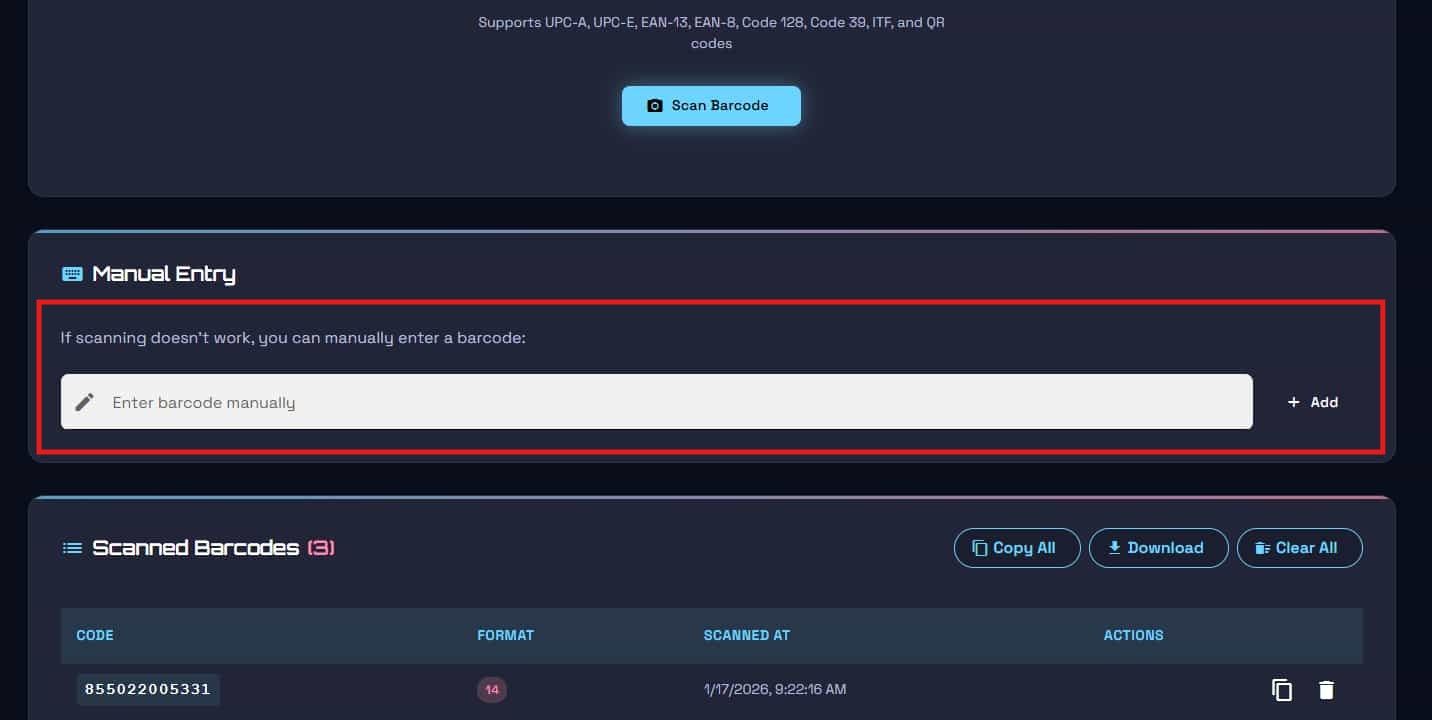
Sometimes a barcode won't scan properly—maybe the print quality is poor, the lighting is bad, or the barcode is damaged. For these situations, the tool includes a manual entry option.
Simply scroll down to the "Manual Entry" section, type the barcode numbers directly into the input field, and click "Add". The tool will save it just like a scanned code, but with the format labeled as "manual".
Managing Your Scanned Barcodes
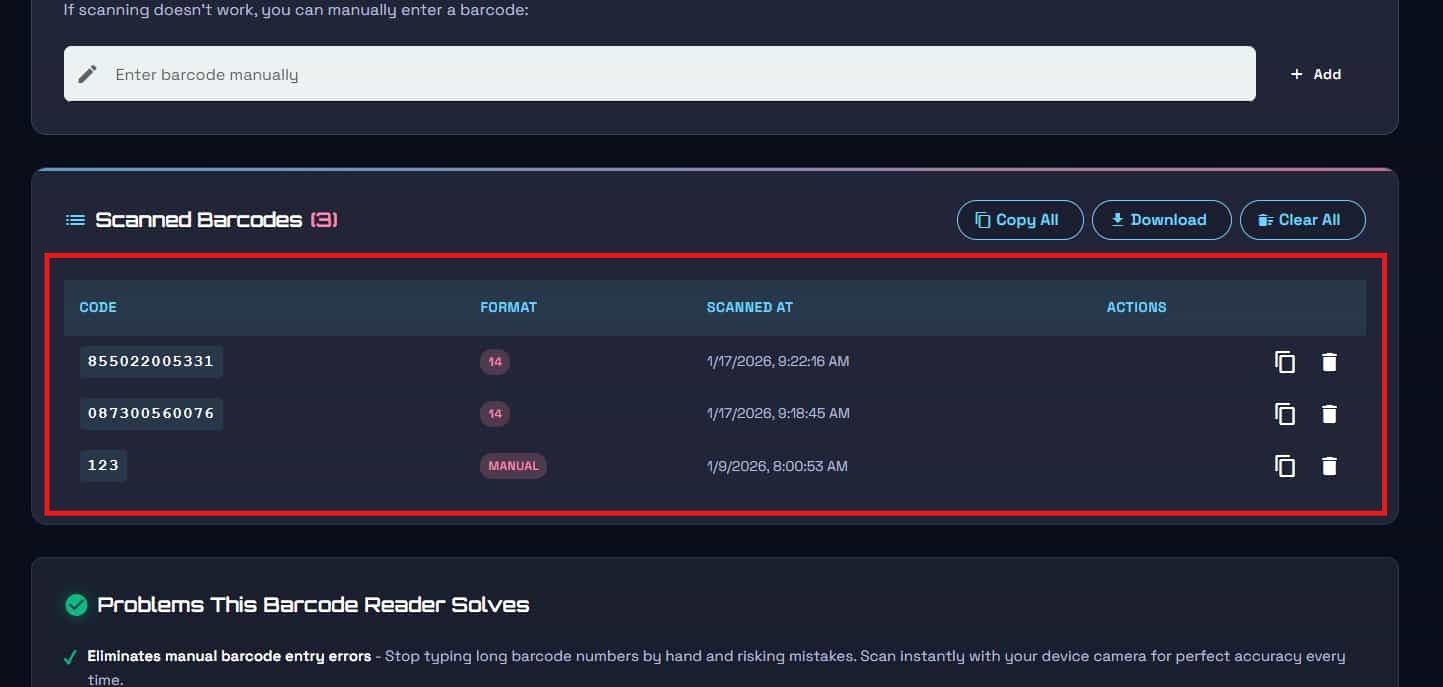
All scanned barcodes are stored locally in your browser with timestamps and format information. The "Scanned Barcodes" section displays a table with all your saved codes.
Individual actions:
• Copy: Click the copy icon next to any code to copy it to your clipboard
• Delete: Click the trash icon to remove a specific code from your collection
Bulk actions:
• Copy All: Copies all scanned codes to your clipboard as a formatted list
• Download: Downloads all codes as a text file named with the current date (e.g., barcodes-2026-01-17.txt)
• Clear All: Deletes all scanned codes after confirmation
Tips for Best Results
Lighting is everything. Good lighting makes the difference between a successful scan and a failed one. Natural daylight or bright indoor lighting works best. Avoid scanning in dim conditions or with harsh shadows across the barcode.
Hold steady. Blurry photos lead to failed scans. Brace your arms or rest your device on a stable surface to minimize camera shake. On mobile, use two hands for extra stability.
Fill the frame. The barcode should take up most of your camera view. Get close enough that the barcode is large and clear, but not so close that it's cut off or out of focus.
Avoid glare. Shiny packaging or laminated barcodes can reflect light directly into your camera, creating bright spots that obscure the barcode. Tilt the product slightly if you see glare.
Clean your camera lens. Fingerprints and smudges on your camera lens will blur the image. A quick wipe with a soft cloth can dramatically improve scan success rates.
Try different angles. If a barcode won't scan, try rotating your device or the product slightly. Sometimes a different angle helps the scanner recognize the code pattern.
Common Use Cases
Inventory Management
Small business owners and warehouse managers use the barcode scanner to quickly catalog inventory without buying expensive handheld scanners. Scan products as they arrive, export the list, and import it into your inventory management system.
Price Comparison Shopping
Scan products in one store, then use the barcode numbers to search for better prices online or at competing retailers. Build a shopping list of codes to reference later.
Product Research
Researchers and market analysts scan barcodes to build databases of product codes for analysis. The export feature makes it easy to move scanned data into spreadsheets or databases.
Personal Collections
Track your book collection, video games, or any other products with barcodes. The timestamp feature helps you remember when you added each item.
Quality Control
Manufacturing and QA teams use the scanner to verify product codes during inspections. The duplicate detection prevents accidentally scanning the same item twice.
Stay in the Loop
Get notified when we add new tools and features
Thank You!
You're all set. We'll keep you updated with the latest tools and features.
Supported Barcode Formats
The scanner automatically detects and reads these barcode formats:
• UPC-A: Standard 12-digit retail barcodes used in North America
• UPC-E: Compressed 6-digit version of UPC-A
• EAN-13: International retail product codes (13 digits)
• EAN-8: Shorter version of EAN-13 for small packages
• Code 128: High-density barcode used in logistics and shipping
��� Code 39: Alphanumeric barcode common in automotive and defense
• ITF (Interleaved 2 of 5): Used for packaging and distribution
• QR Code: 2D barcodes that can store URLs, text, and other data
You don't need to select the format manually—the tool automatically identifies what type of barcode it's scanning and displays the format name with each saved code.
Privacy and Data Storage
All barcode scanning and storage happens entirely in your browser. When you scan a barcode, the image is processed locally on your device using JavaScript—nothing is uploaded to any server.
Scanned codes are saved to your browser's localStorage, which means:
• Your data persists even if you close the browser or restart your device
• Codes are only accessible from the same browser on the same device
• Clearing your browser data will delete stored barcodes
• No external services or APIs have access to your scanned codes
This privacy-first approach makes the tool ideal for scanning confidential inventory, prototype products, or business-sensitive barcodes.
Troubleshooting Common Issues
"No barcode found in photo"
This means the scanner couldn't detect a valid barcode in the image. Check your lighting, make sure the barcode isn't blurry, and try getting closer or further from the barcode. If the barcode is damaged or very low quality, use the manual entry option instead.
"Failed to initialize scanner"
This usually means there's a problem with camera access. Make sure you've granted camera permissions in your browser settings. On some browsers, camera access only works over HTTPS or on localhost.
"Barcode already exists"
You've already scanned this code. The tool prevents duplicate entries automatically. If you want to re-add a code, delete it from your collection first.
Wrong code detected
Sometimes poor image quality or printing defects cause misreads. That's why the tool includes an approval step—always verify the scanned code matches the printed barcode before clicking "Approve & Save". If it's wrong, click "Retry" and scan again.
The Bottom Line
The barcode scanner tool transforms your phone or computer into a powerful barcode reader without requiring expensive hardware or software installation. Whether you're managing inventory, comparing prices, or cataloging a personal collection, the tool's approval workflow, duplicate prevention, and local storage make it both reliable and privacy-focused.
Start scanning barcodes instantly at allthethings.dev/tools/barcode-reader.
Visit Us On: